AntwyoneWashingtonPhotography AntwyoneWashingtonPhotography

The Headshot Session That Doesn’t Leave You Guessing (Tacoma Studio • Weekend Slots)

My studio workflow is built for speed and quality—so you get a fast turnaround without sacrificing professional retouching and clean, high-end results.
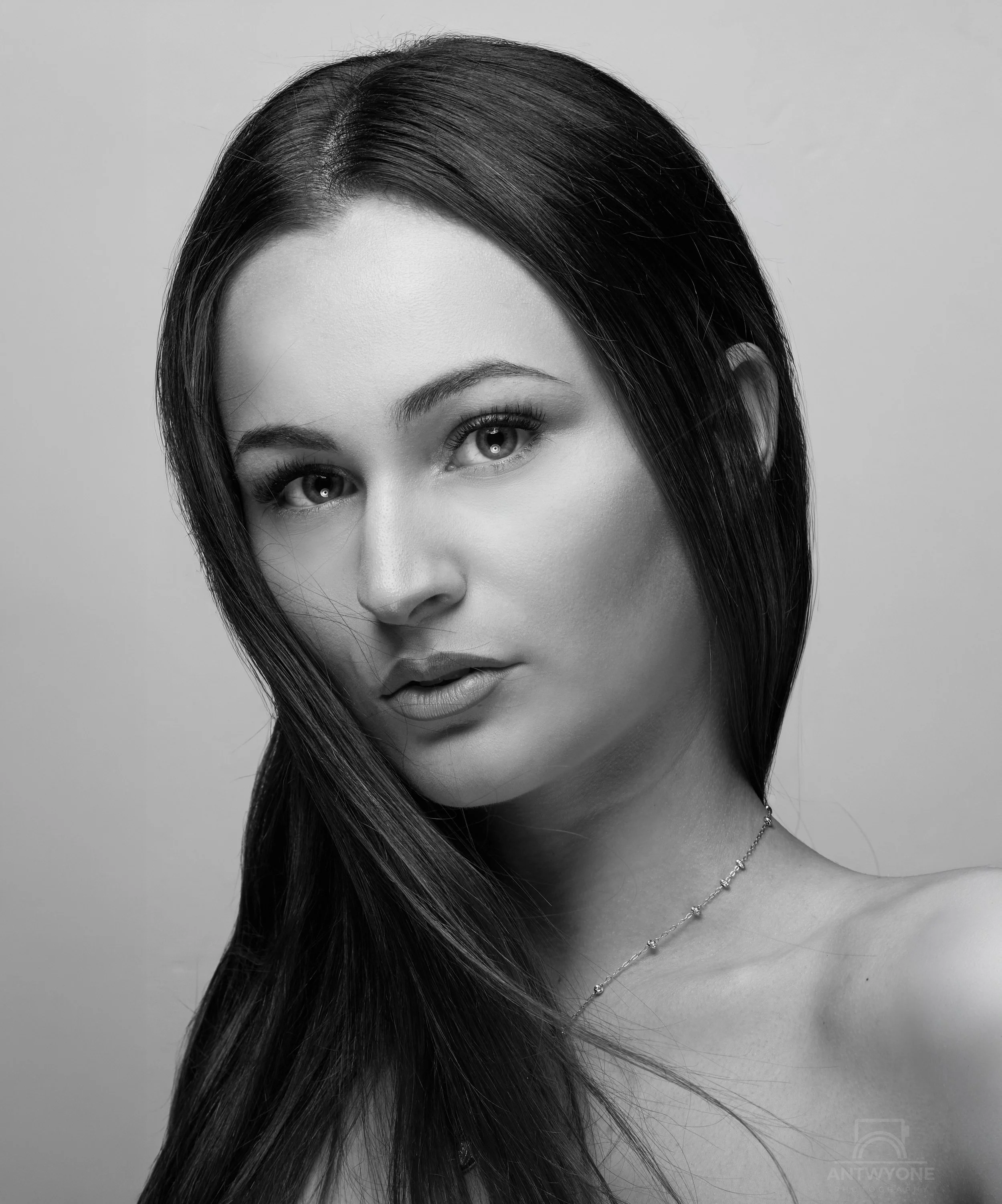
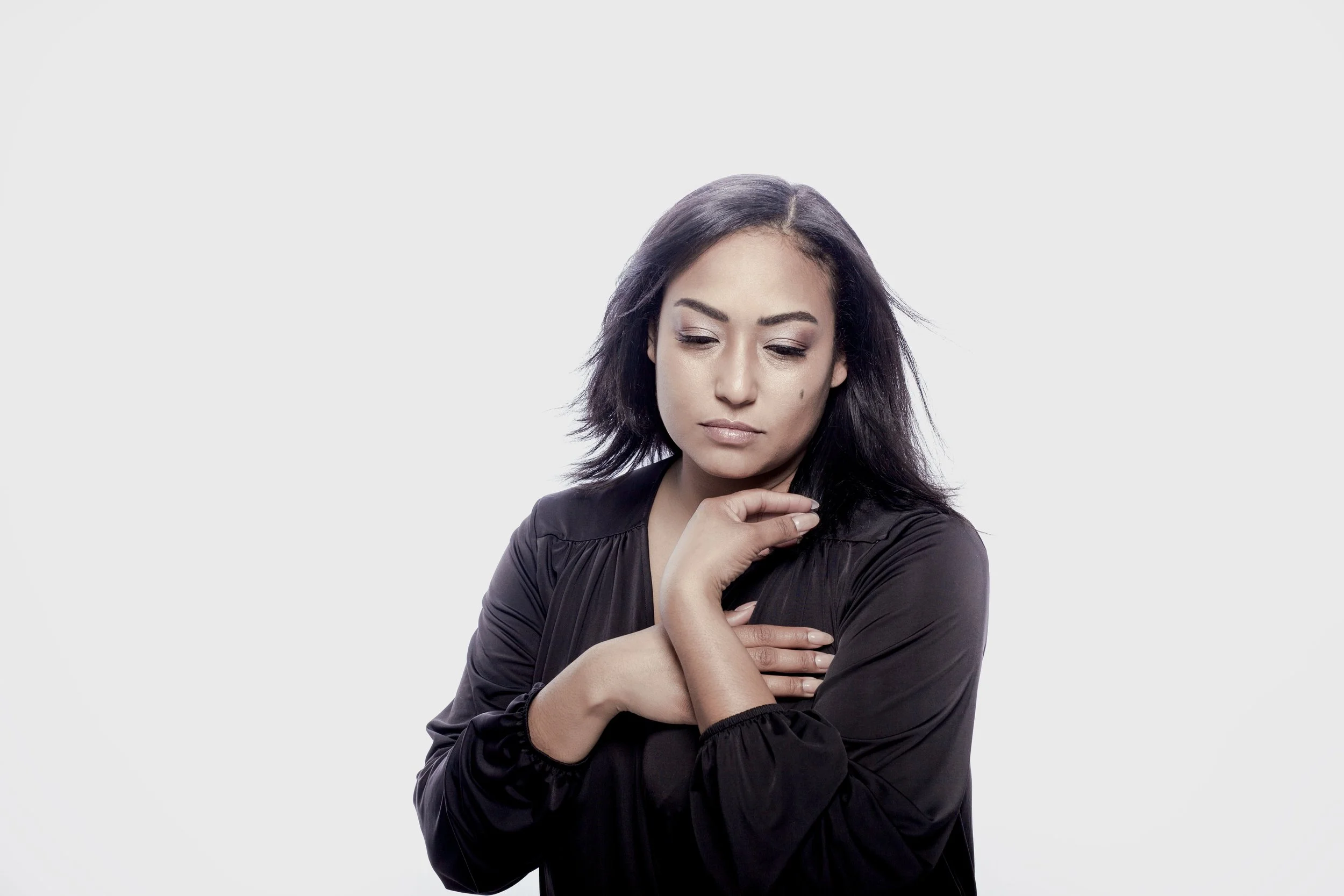
If you’ve ever paid for “professional headshots” and walked away thinking, “Why didn’t anyone tell me my chin was too high… or my blazer was bunched… or my smile looked forced?”—you’re not alone. A lot of people have had a bad experience: rushed sessions, zero direction, confusing pricing, and weeks of waiting just to see photos that don’t feel like you.

At Antwyone Washington Photography, the whole point of an in-studio portrait or headshot session is confidence. You’re not coming in to “hope it works out.” You’re coming in to be guided, coached, and photographed with intention—so you leave knowing you’ve got images you can actually use.

Read More
photography, portraits, headshot, studio, professional, near me, local AntwyoneWashingtonPhotography photography, portraits, headshot, studio, professional, near me, local AntwyoneWashingtonPhotography

tacoma studio portraits

Wall worthy Portraits

Wall Hanging Portraits

Want portrait that look incredible on your wall? Click through, then book your consultation- 748 Market street Tacoma

Read More
AntwyoneWashingtonPhotography AntwyoneWashingtonPhotography

Color Grading with Capture One: From Simple to Complex

Color grading is a powerful tool in a photographer’s toolkit, enabling you to evoke mood, style, and emotion in your images. Capture One offers a robust set of features that allow both beginners and advanced users to craft stunning visuals. In this post, we'll explore the spectrum of color grading—from simple tweaks to complex manipulations.

  1. Starting Simple: Basic Color Adjustments

a. White Balance and Exposure

Before diving into color, ensure your image has the correct exposure and white balance. Use the White Balance Tool or sliders to set a neutral tone.

b. Color Balance Tool

Capture One’s Color Balance tool lets you adjust shadows, midtones, and highlights separately, providing a straightforward way to influence overall color tone.

Example:

Slightly warm shadows for a cozy feel.

Cool highlights for contrast.

c. Basic Saturation and Vibrancy

Use the Saturation and Vibrancy sliders to enhance or tone down colors globally or selectively.

  1. Intermediate Techniques: Fine-Tuning Colors

a. Adjusting Specific Colors

Capture One’s Color Editor allows you to select specific colors and adjust their hue, saturation, and lightness.

Example:

Shift the hue of greens to achieve a more teal look.

Desaturate reds to create a muted, vintage feel.

b. Using the Color Editor’s Skin Tone Tab

Ideal for portraits, this feature helps you subtly adjust skin tones without affecting the rest of the image.

  1. Advanced Methods: Creating Mood and Style

a. Layers and Masks

Leverage layers with masks for localized color grading. For instance, brighten a subject’s face or change background colors without affecting the entire image.

b. Custom Color Grading with Curves

Capture One’s RGB Curves and Luma Curves enable precise control over tonal ranges and color tones.

Example:

Slight S-curve for contrast.

Adjusting individual RGB channels for color shifts.

c. Split Toning

Simulate film-like color grading by adding color to shadows and highlights separately, creating a cohesive mood.

  1. Pushing Boundaries: Complex Color Manipulation

a. Use of LUTs and Presets

While Capture One doesn't natively support LUTs, you can simulate LUT effects with advanced layering and color adjustments or import LUTs via third-party workflows.

b. Combining Multiple Layers and Masks

Create intricate color effects by stacking layers with different masks and blending modes — for example, tinting certain areas, adding vignettes, or creating color gradients.

c. External Color Grading

Export your image for further color grading in external software like Photoshop or DaVinci Resolve, then re-import into Capture One for final tweaks.

  1. Tips for Effective Color Grading in Capture One

Use Reference Images:** Keep a mood board or reference image handy to guide your color choices.

Work Non-Destructively:** Utilize layers and masks for flexibility.

Stay Subtle:** Often, less is more. Small adjustments can have a big impact.

Experiment:** Don’t be afraid to push sliders and explore different styles.

Conclusion

Color grading in Capture One can be as simple or as complex as you desire. Starting with basic adjustments helps build a foundation, while advanced techniques unlock creative potential. Practice, experiment, and develop your unique style—Capture One is a versatile tool ready to bring your vision to life.

Read More

Latest Posts